![LOGO-White-RGB.png]](https://help.choozle.com/hs-fs/hubfs/LOGO-White-RGB.png?width=160&height=35&name=LOGO-White-RGB.png)
GUIDE
Getting Started
An ad group is a single set of ads with an associated bid and audience within a campaign. Each of your campaigns comprises one or more ad groups that can be managed individually. This allows you to adjust a single variable, such as bids, budget, creative, and more, within one ad group without affecting other ad groups' success within your campaign.
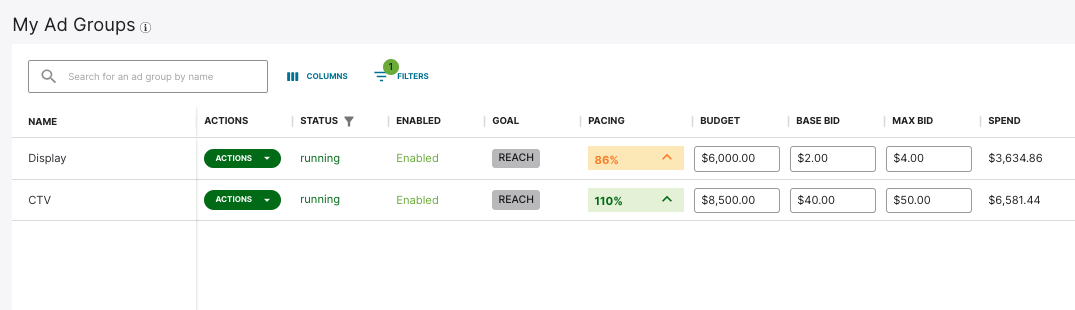
If you have multiple ad groups, you will see them as components of your overall campaign in Choozle in the Campaigns Tool.
Using Online Video Ads
Online Video (OLV) ads, also known as digital video ads, are a highly engaging creative format used to capture attention across the web. OLV is an incredibly versatile format that comes in various placements, including pre-roll, mid-roll, or outstream, and spans lengths from quick 6-second bumpers to full 30-second stories.
These creative formats appear across a wide range of websites, mobile apps, and premium video properties associated with Amazon or its publisher network.
As with any ad or marketing message, OLV ads should have a clear, interactive call to action (CTA). A common CTA is a "Shop Now" button or an on-screen overlay that makes it seamless for viewers to click through directly to your landing page.
For your OLV ad to build strong brand awareness, make it easy for users to identify your business within the first 3 seconds, before they have the option to skip. Your business name and logo should be prominently featured, and your message should be clear right off the bat, even if the viewer has their sound turned off. This immediate impact helps potential customers quickly recognize your brand, determine if your offer is relevant to them, and drive immediate action or future recall.
Create an Ad Group with Online Video Ads
Below is an overview of setting up an ad group if you are using Online Video ads.
- Before getting started, be sure to upload your Creative assets that adhere to the following specifications into Choozle's Creative Asset Library for use in your digital advertising campaigns. We recommend uploading creatives 72 hours before the launch of your campaigns to allow the exchanges ample time to approve the creatives and our technical support team time to troubleshoot any issues with the creatives. Note that all creatives uploaded into Choozle will undergo the Creative Asset Approval and Validation Process.
- After you have created your campaign, you will be instructed to set up your first ad group. If you want to create additional ad groups, select Create ad group.
- Define your ad group settings. Give your ad group a name, select the Online Video creative type, and then choose applicable Product Categories. Product Categories selections will help inform optimal ad placements.
- Select a Geolocation . Geolocation is a required component of all campaigns within Choozle and is set at the ad group level. All countries, states/provinces/regions, and cities/DMAs are available directly within the Choozle platform.
- Select preferred supply sources. For Amazon Online Video ad groups, the following choices exist: Amazon Ads, Amazon Publisher Services, and Twitch. Selection of supply sources will determine the extent of available inventory options.
- Select an audience (Optional). Audiences built within the account will populate in this section. If an audience was built for or relates to a given ad group, it can be selected here.
- Select a Private Marketplace Deal (Optional). If desired, select from the list of curated PMP deals.
- Review your advanced settings. Choose your targeted device type preferences, customize your frequency settings, video completion rate goal, video initiation type, video player size, and optionally set a viewability goal.
- Choose your ad group budgets and bids. At this level, you will be able to choose the campaign’s Total Ad Group Budget, the Budget Cap (uncapped vs. capped daily), a Base CPM Bid, and a Max CPM Bid. For bid recommendations, reference Choozle's CPM Cheat Sheet.
- Add your Online Video creative asset(s) to the ad group.
- Save ad group.
Need Help?
If you have any additional questions please reach out via your Customer Support Portal!
