![LOGO-White-RGB.png]](https://help.choozle.com/hs-fs/hubfs/LOGO-White-RGB.png?width=160&height=35&name=LOGO-White-RGB.png)
Instructions
1. Reach out to your Choozle Account Team (or request via a ticket in the Customer Portal) and request a flat pixel be created for your button.
2. Provide a Name and the URL of where the pixel will be placed
3. Once the Choozle team supplies a flat pixel, go to your Google Tag Manager account and select the TAGS tab on the left hand side panel
4. Hit 'NEW' and title your TAG, e.g. My Account Name-Choozle Tracking Pixel
5. Click Tag Configuration and select the Custom HTML option under the 'Custom section'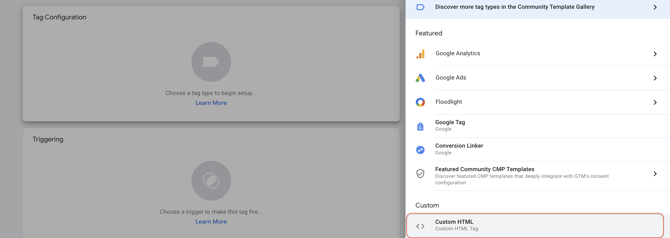
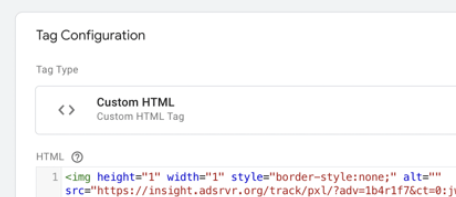
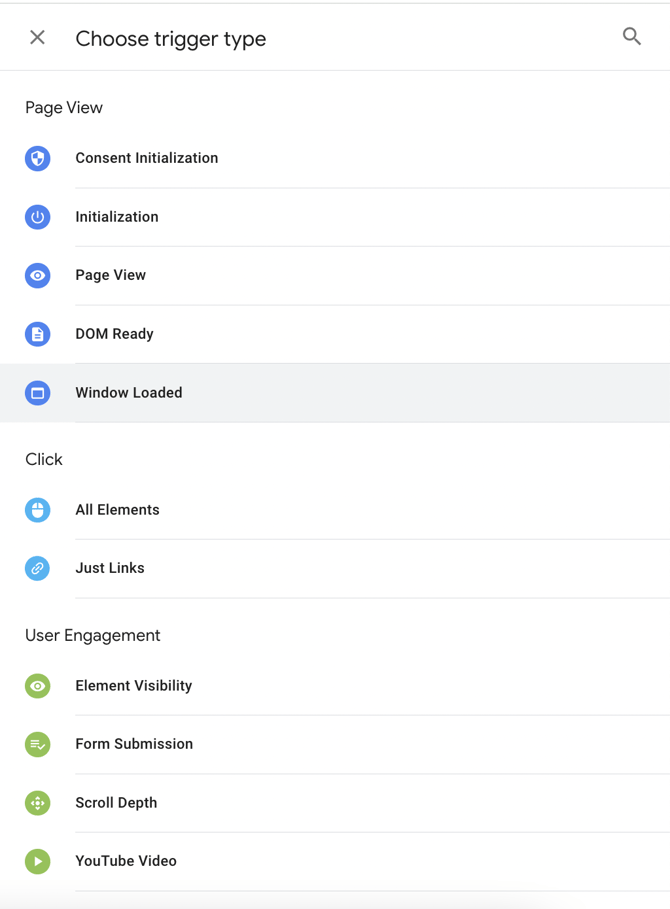
7. Next, in GTM, choose a trigger to fire on under under the 'Triggering' section
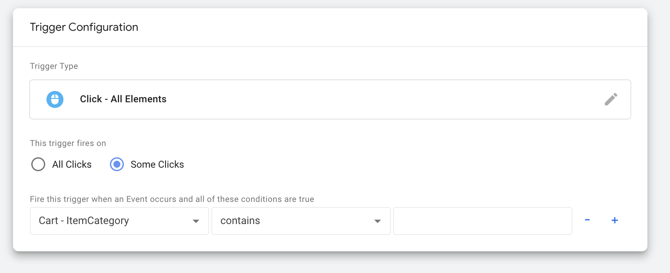
Be sure to define your trigger type (All Elements, Page View, Custom Event) to fire on whatever business action necessary. This is defined by the end customer and not Choozle. If you're setting up button clicks within GTM, you will want to select the 'Click - All Elements' option, choose whether it's on All Clicks or Some Clicks, then define what event trigger the tag/pixel should fire on (Click Element ID, Click ID, Click Text, Click URL etc).
8. Hit SAVE
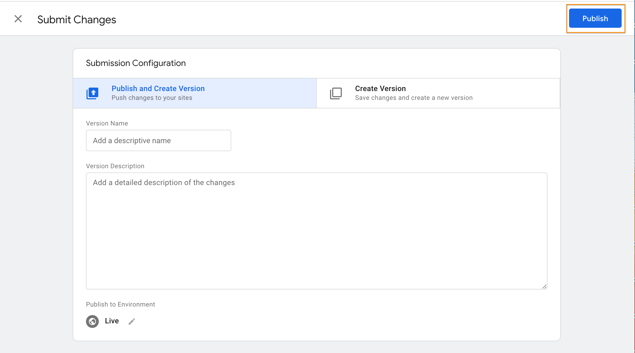
9. Submit and Publish your changes
Do not forget to complete this step. This step is sometimes missed and prevents the pixel from firing.
NOTE: You can reach out to your Choozle Account team or the Support Center to assist with testing the tracking pixel is passing back data correctly if you have any concerns.