![LOGO-White-RGB.png]](https://help.choozle.com/hs-fs/hubfs/LOGO-White-RGB.png?width=160&height=35&name=LOGO-White-RGB.png)
What are Amazon AdTags?
Amazon Ad Tags allow advertisers to track key 'off-Amazon' conversion events driven by Amazon DSP campaigns within Choozle.
Getting Started with your Amazon AdTag
In accordance with Amazon's current account setup, each advertiser account is allotted one AdTag that is created during the account creation process. All tracked events will be hosted within the singular account AdTag.
Note: While AdTag creation occurs during the account creation process, it will not appear until 2-4 hours after account creation.
To access your account's AdTag, set the provider tab to 'Amazon' and navigate to Tracking -> AdTags within your account's main navigation bar. This is your account's AdTag library.

Managing your AdTag Library
Within the initial page of your AdTag library, you will find the name of your AdTag as well as two additional columns labeled 'Actions' and Status.'
- Actions: Click on the green 'Actions' button will open a drop-down menu that consists of a single item, 'view script.' This option opens the JavaScript used to create tracked events.
- Status: After creation, the status section should read as 'Ready.'

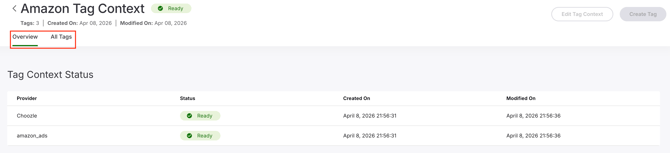
From the initial AdTag library page, you have the option to click on your AdTag, which opens a page that displays your AdTag name as the heading and consists of two tabs: 'Overview' and 'Ad Tags.'
- Overview: Like the initial AdTag library page, the overview tab displays the status of your AdTag, which, after creation, should read 'Ready.'
- Ad Tags: The Ad Tags tab will host all created tracked events. A tracked event may have the status of 'Ready,' indicating it is eligible to be attached to a conversion event, or 'In Use,' which indicates it is currently attached to a conversion event. In order to archive a tracked event, select the appropriate tracked event, select the green 'Actions' button, and select 'Archive.'
Creating a Tracked Event
In order to create a tracked event, do the following:
- Navigate to the main AdTag library page by selecting Tracking -> AdTags from your main navigation bar.
- Select the green 'Actions' button under the Action column
- Select 'View Script'
- Click 'Copy Code' to copy the JavaScript code
- Deploy code directly or through a tag manager onto all applicable webpages
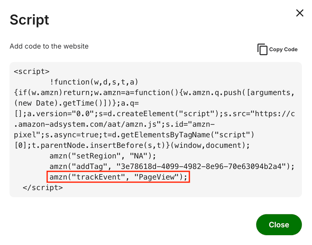
Note: Each tracked event MUST have a unique name. Before event deployment, update the line of code 'amzon("trackEvent", "ENTER TRACKED EVENT NAME HERE");' to reflect the accurate event name.
Creating a Conversion Event
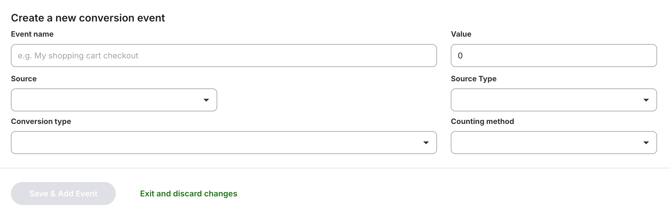
In order to create a conversion event, navigate to Campaigns -> Create Campaign -> Add a conversion event -> Create new event and fill out the following fields:
- Event Name: The name of your conversion event. It can be the same as your tracked event name.
- Value (optional): This is a static number that may be assigned to a conversion event.
- Source: Select 'Amazon ad tag'
- Ad Tag Event: Select the appropriate tracked event to be included within the conversion event
- Source Type: Select 'Website'
- Conversion Type: Select a conversion type that accurately describes your tracked event. If none describe your conversion event, then select 'Other'.
- Counting method: Selecting 'First' will trigger a conversion only the first time a user triggers the event. 'Every' will trigger a conversion every time a user triggers the event.
Note: Tracked events may only be associated with one conversion event. Multiple conversion events may be added to a single campaign, and conversion events are reusable across campaigns.
Best Practices
- Amazon DSP optimizes towards the first conversion event added to your campaign. Apply your highest priority event first when building your campaign.
- Focus on 3-5 core conversion events in order not to dilute optimization goals.