![LOGO-White-RGB.png]](https://help.choozle.com/hs-fs/hubfs/LOGO-White-RGB.png?width=160&height=35&name=LOGO-White-RGB.png)
Standard settings at a glance
|
Setting |
What to choose |
|---|---|
|
Deal Desk |
Partner Deal Desk |
|
Permissions behavior |
Override buying permissions set by seller (always) |
|
Delivery profile, deal for all Choozle advertisers |
All |
|
Delivery profile, deal for one client |
That client's delivery profile (create it if missing) |
Find and review the deal
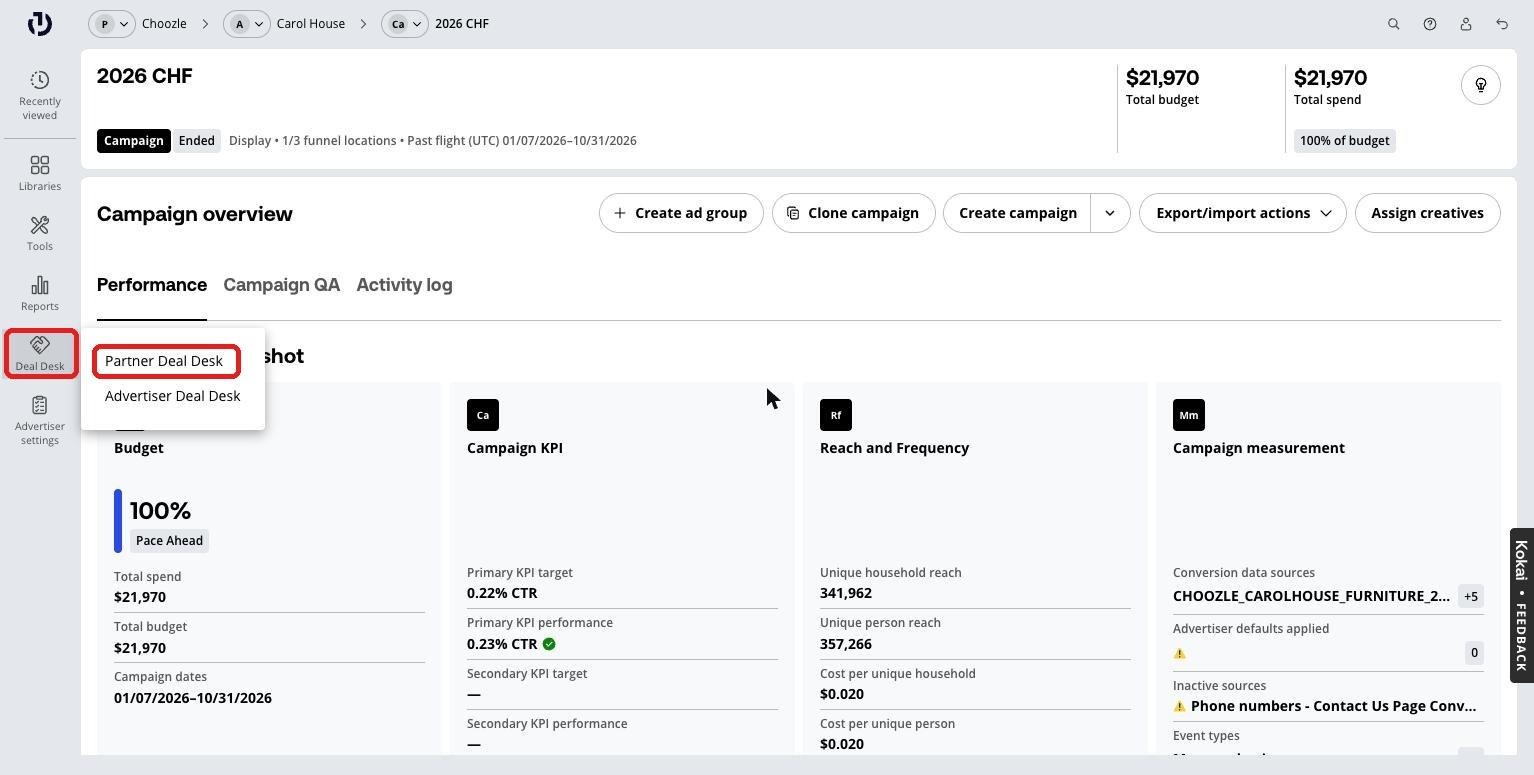
- Open Partner Deal Desk. From any TTD screen, hover over Deal Desk in the left nav and select Partner Deal Desk.
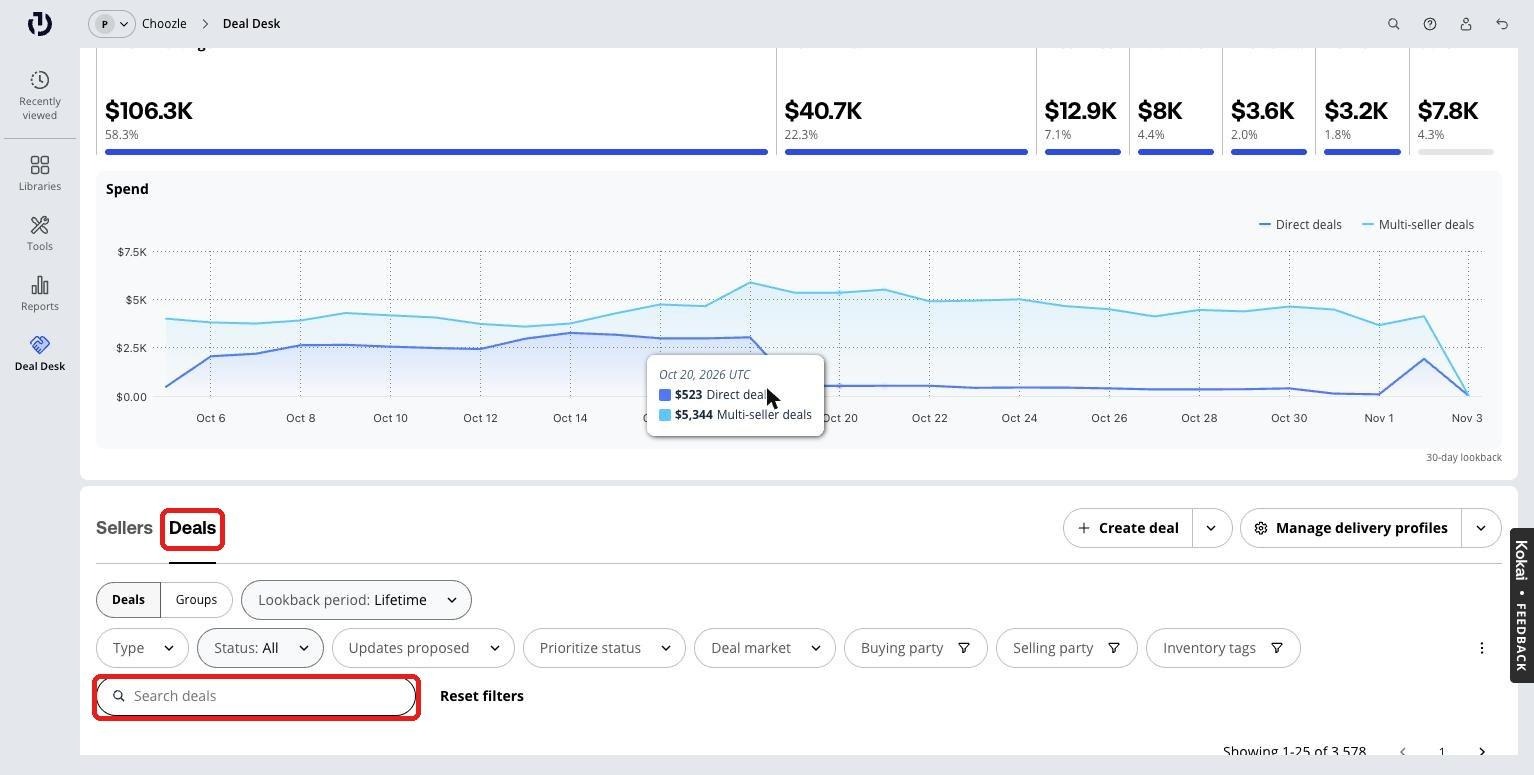
- Search for the deal. Scroll down to the Deals tab. Enter the deal ID or name in Search deals. Use filters such as Status to narrow the list if needed. Click the deal to open it.
- Review the deal terms. On the deal details page, check flight dates, pricing, inventory scope and other terms against what was negotiated:
- Matches agreed terms? The observed data column should match the pricing and inventory in the terms column.
- Better than marketplace? Check the Deal Quality Score breakdown.
- Fits campaign goals? Confirm the deal's users are relevant to the campaign.
- Based on your review, click Accept deal, Message seller or Reject deal. Do not reject unless you are sure (see Warnings).
Accept the deal
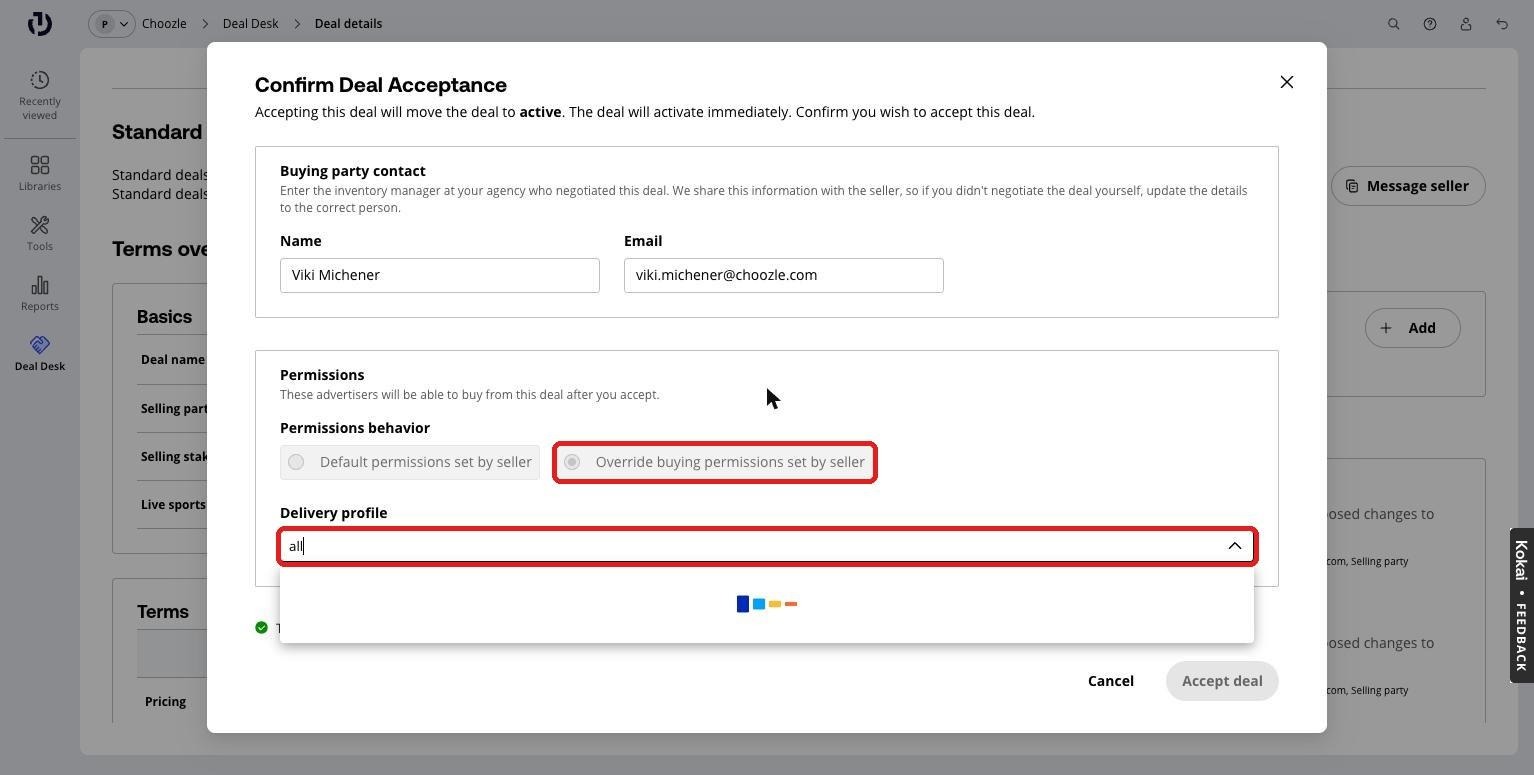
Clicking Accept deal opens the Confirm Deal Acceptance window.
- Buying party contact. Confirm the Name and Email of the person who negotiated the deal. TTD shares this with the seller, so update it if someone else negotiated the deal.
- Permissions behavior. Always select Override buying permissions set by seller.
- Delivery profile. Search the dropdown and select:
- All if the deal is for all Choozle advertisers.
- The client's delivery profile if the deal is for one client only. If it isn't listed, create it first (next section), then come back to this step.
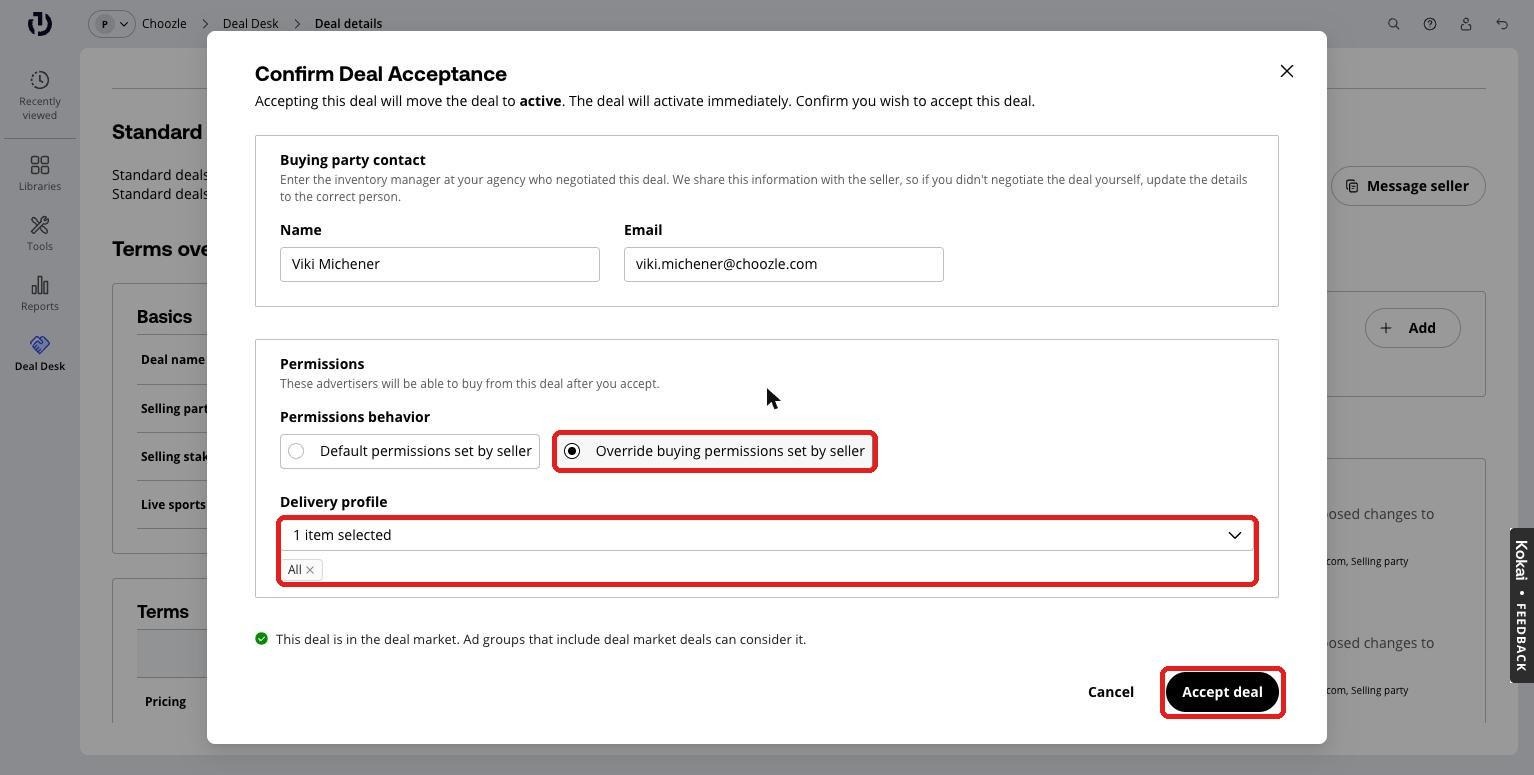
- Confirm and accept. Check that the settings match the example below and that the green note says the deal is in the deal market. Then click Accept deal. The deal goes active immediately.
If the client's delivery profile is missing
Create the profile, then go back to the deal and accept it with the new profile selected.
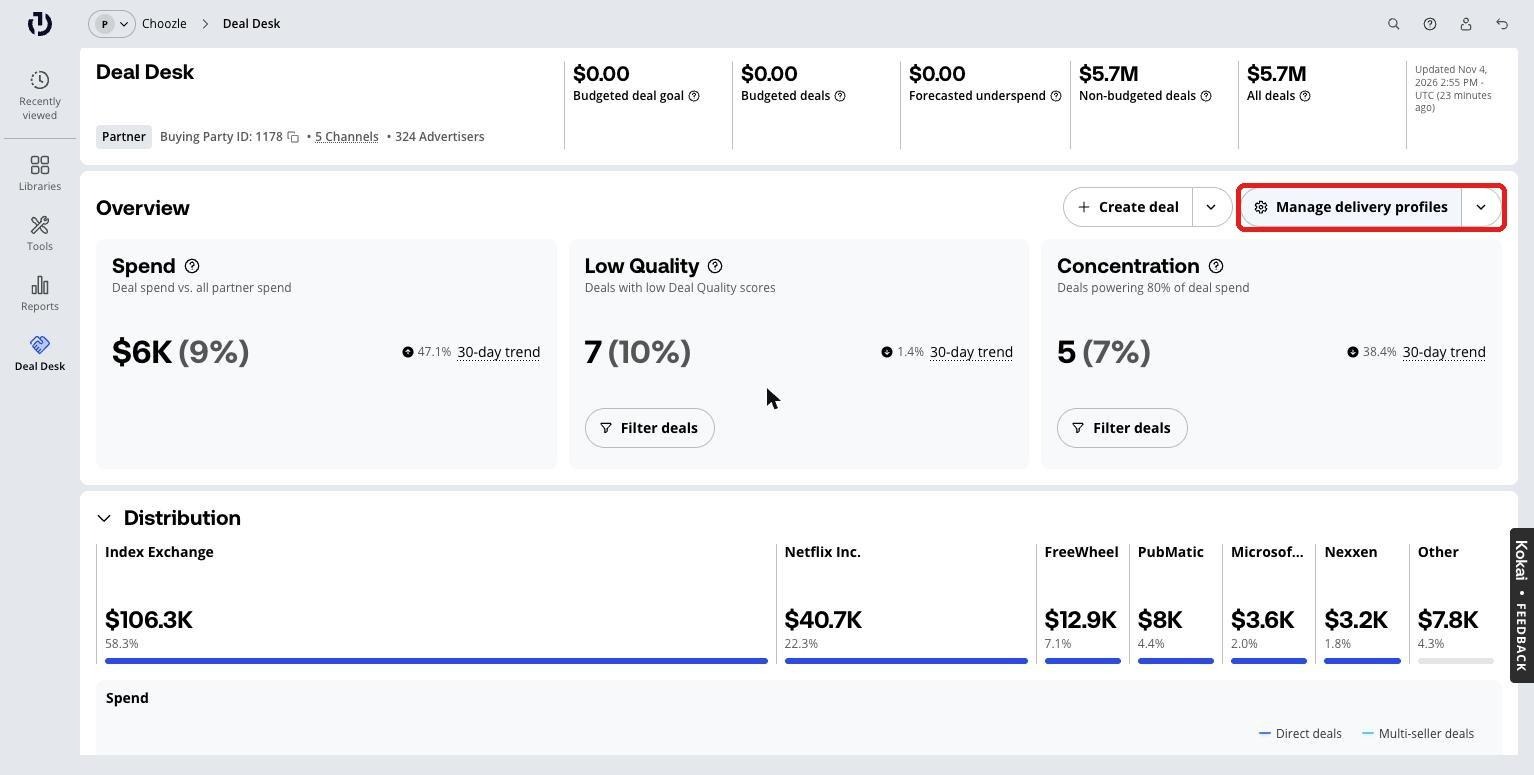
- Open Manage delivery profiles. Go to the Partner Deal Desk home page. Manage delivery profiles is at the top right of the Overview section.
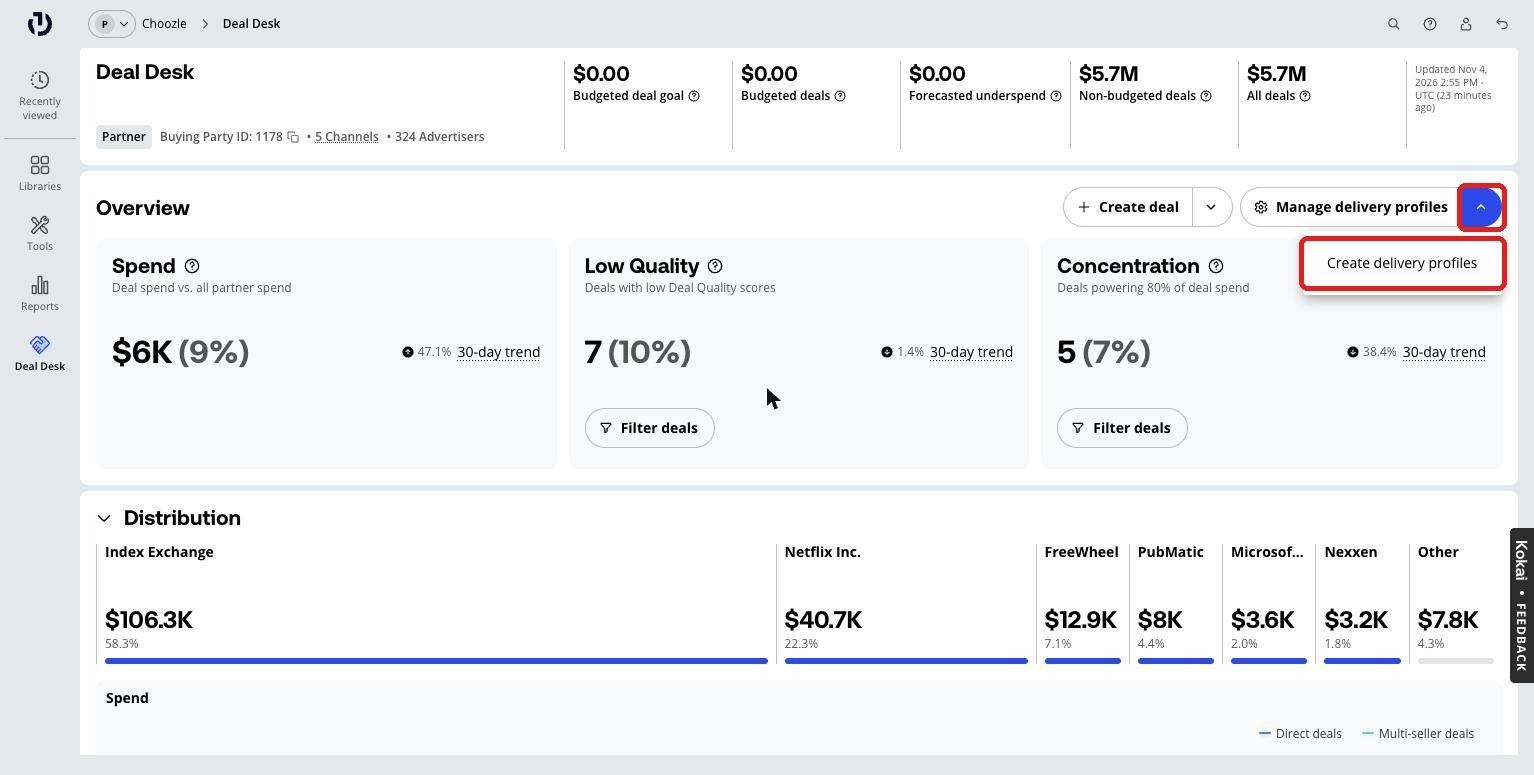
- Start a new profile. Click the dropdown arrow next to Manage delivery profiles and select Create delivery profiles.
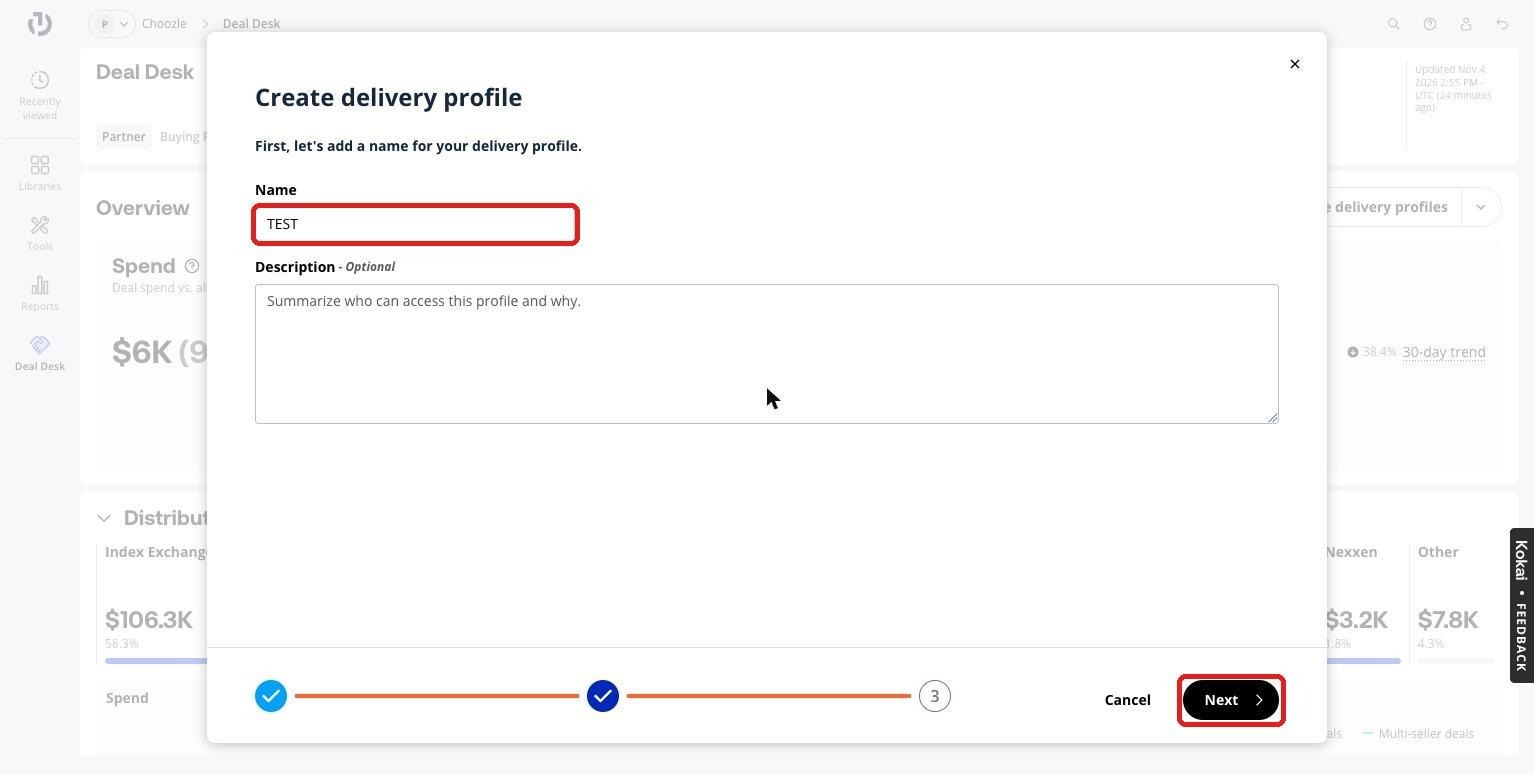
- Name the profile. Enter the client advertiser name in Name. Adding a Description is optional. Click Next.
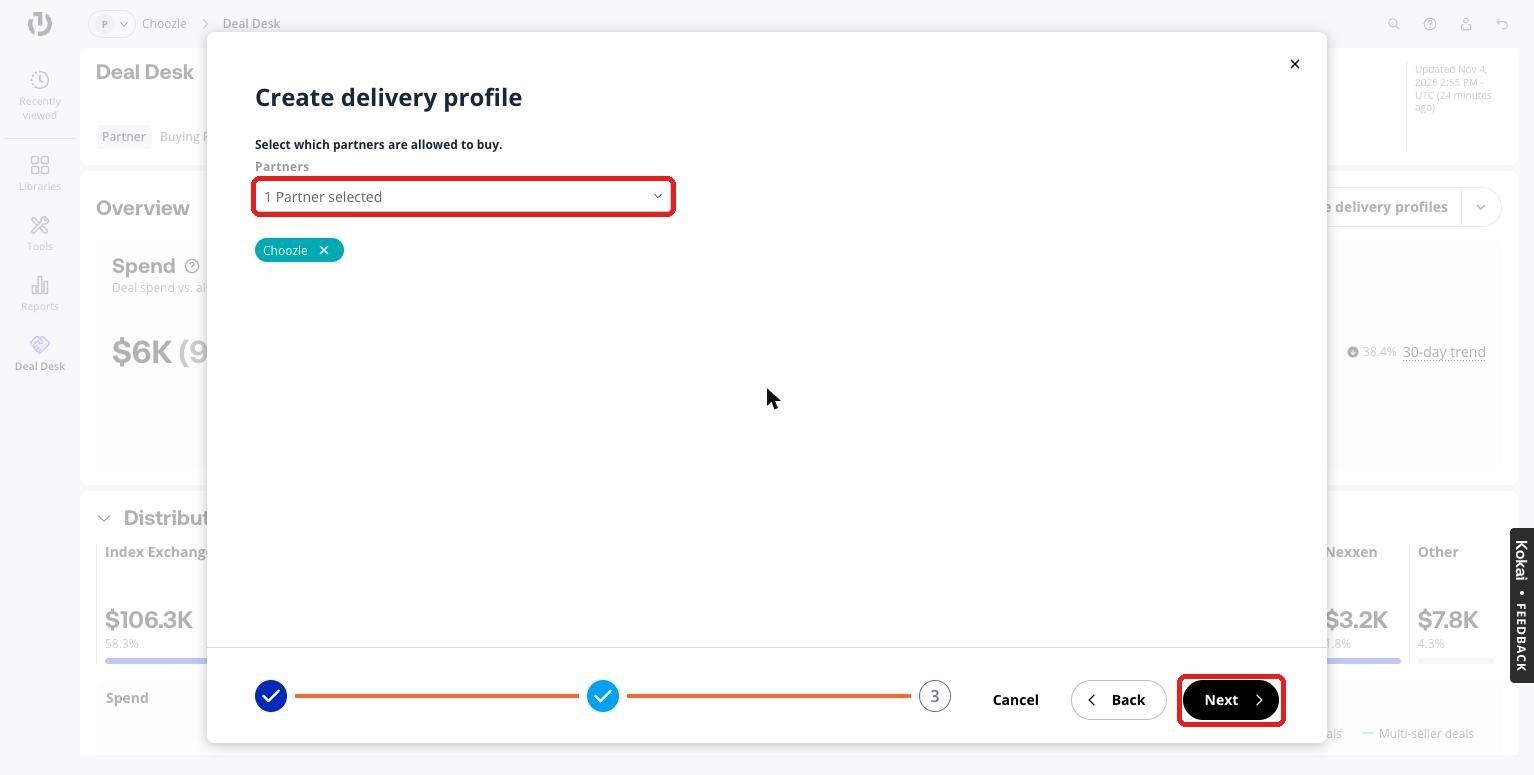
- Select the partner. Under Partners, confirm Choozle is selected. Click Next.
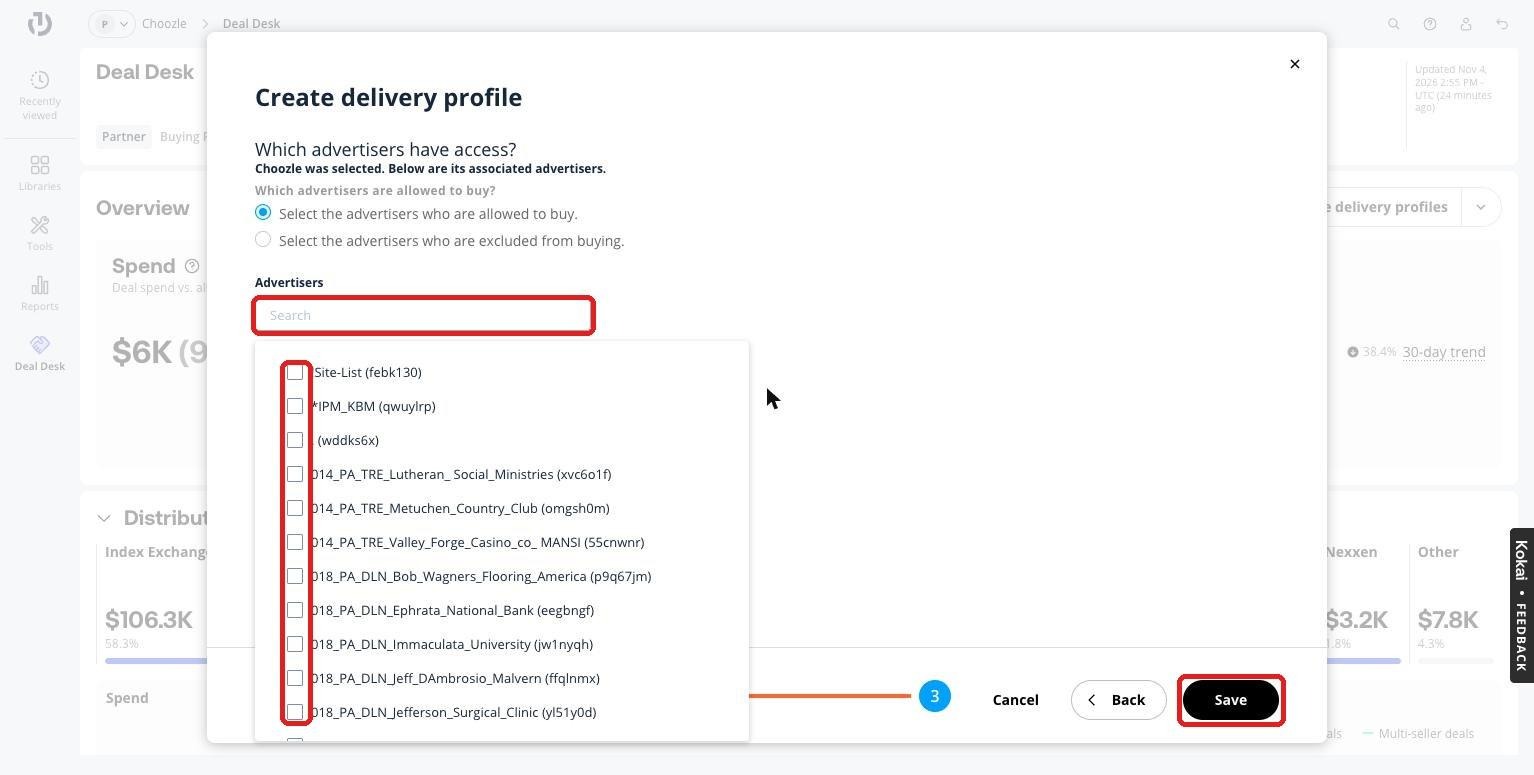
- Select the advertiser. Keep Select the advertisers who are allowed to buy selected. Search for the client advertiser, tick its checkbox, and click Save.
- Return to the deal. Search for and open the deal again. Click Accept deal, select the new delivery profile, and finish the steps in Accept the deal.
Warnings
- Rejecting a deal is permanent. Once rejected, the deal is removed from your view. To revisit it, the seller must send a new proposal with a new deal ID.
- Accepting activates the deal immediately. Check the terms and the delivery profile before you click Accept deal.